A better online wireframing experience.
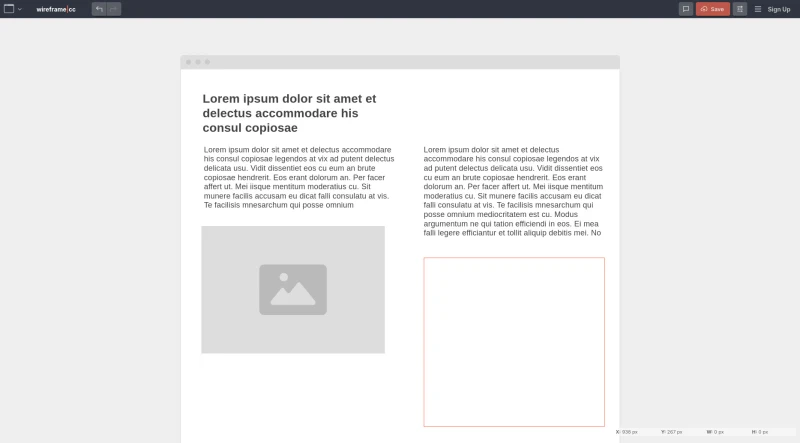
Wireframe.cc is a platform focused on creating and editing wireframes using a declarative drawing interface.
The principal functionalities and features of Wireframe.cc are categorized below:
1. Drawing and Element Insertion
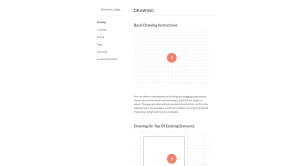
Basic Drawing: Users draw a new element by clicking and dragging the mouse cursor across the canvas, then selecting a stencil from a pop-up menu.
Contextual Stencils: The pop-up menu only presents stencils that fit the selected area (e.g., a vertical scrollbar requires a high and narrow rectangle).
Drawing Over Existing Elements: To draw on top of an element, the user must either press the Ctrl key and then click and drag, or first lock the existing element.
Drawing Shortcuts: The insertion process can be sped up using keyboard shortcuts corresponding to specific elements (e.g., B for Box, T for Text, I for Image, H for Header).
Color Specification: When drawing a box, users can specify its background color using shortcuts (e.g., 0 for Transparent, 1-6 for Greyscale, 7 for Tomato).
2. Precision and Alignment (Snapping)
Smart Guides: Enabling smart guides provides temporary snap-to guides that appear when creating or transforming objects, enhancing precision and speed. These guides appear when an object or cursor approaches the edge or center point of other objects or the canvas.
Grids and Columns: Users can display and snap to a rectangular grid or columns to improve drawing efficiency. Grid spacing is controllable, and users can choose between graph paper or dotted styles.
Snapping Control: Snapping can be temporarily disabled by holding the ALT key, or permanently turned off in the Settings panel.
3. Editing and Manipulation
Editing Elements: Elements are edited by double-clicking them, which displays a context-sensitive menu containing only applicable options.
Multiple Selection: Users can select multiple elements by 1) clicking and dragging from an empty canvas area upwards and to the left (elements fitting the selection rectangle are selected), or 2) clicking while holding SHIFT to select additional elements.
Locking: Elements can be locked or unlocked using the toolbar button or the shortcut Ctrl + L.
Editing Shortcuts: Numerous shortcuts exist for common actions, including Copy (Ctrl + C), Paste (Ctrl + V), Delete (Del), Group/Ungroup (Ctrl + G), Save (Ctrl + S), Undo (Ctrl + Z), Redo (Ctrl + Y), and changing stroke width (Ctrl + 1/2/3) or border color (Alt + 0-7).
Layering: Users can adjust element stacking order using shortcuts like Ctrl + ↑/↓ (Bring forward/Send backward) or Ctrl + Shift + ↑/↓ (Bring to front/Send to back).
4. Page Management and Interactivity
Page Linking: Any stencil can be converted into a link that directs users to a different page within the project (visible in Preview Mode). Links are created using the Link Pages button, context menu, or Ctrl + K shortcut.
Master Pages (Reusability): Elements that repeat across different pages (e.g., headers, sidebars) can be added to a master page. When a master page is updated, the changes automatically apply to all associated regular pages.
Master Page Application: An existing page can be converted to a master page, or a new one can be created. Multiple master pages can be applied to a single regular page.
Arranging Masters: Master pages can be configured to display behind or on top of the elements on the page they are applied to. They can also be dragged around the canvas to adjust their position relative to the active page.
5. Exporting
Export Formats: Wireframes can be exported to a PDF file or a series of PNG files.
Export Scope: Users can export all pages at once (to a single file or a zip archive) or export only selected pages.
Options: Exports can optionally include the device template (browser, tablet, or mobile).
PNG Resolution: For the PNG format, users can specify the resolution (@1x or @2x raster images).
You may also be interested in ...
AdonisJS
NativeScript